
Connecting OwnerRez to TidyStay
Link your OwnerRez account once, and every confirmed booking turns into a scheduled cleaning automatically — with the right cleaner already on the job.
What syncs from OwnerRez
Property details
Name, address, bedrooms, bathrooms, square footage, check-in and check-out times, and timezone — pulled from OwnerRez.
Bookings & guests
Confirmed reservations with guest name, check-in, check-out, and the booking channel (Airbnb, Vrbo, direct, etc.).
Turnovers, auto-created
Every confirmed booking creates a cleaning turnover at checkout. If you've set a default cleaner, they're assigned and notified right away.
Real-time updates
When a booking is created, rescheduled, or cancelled in OwnerRez, your TidyStay turnovers and cleaners stay in sync automatically.
Before you start
You'll need an OwnerRez account you can sign in to. If you manage multiple OwnerRez logins, make sure you're signed into the one that owns the properties you want to connect — the whole setup takes about two minutes.
Connect in four steps
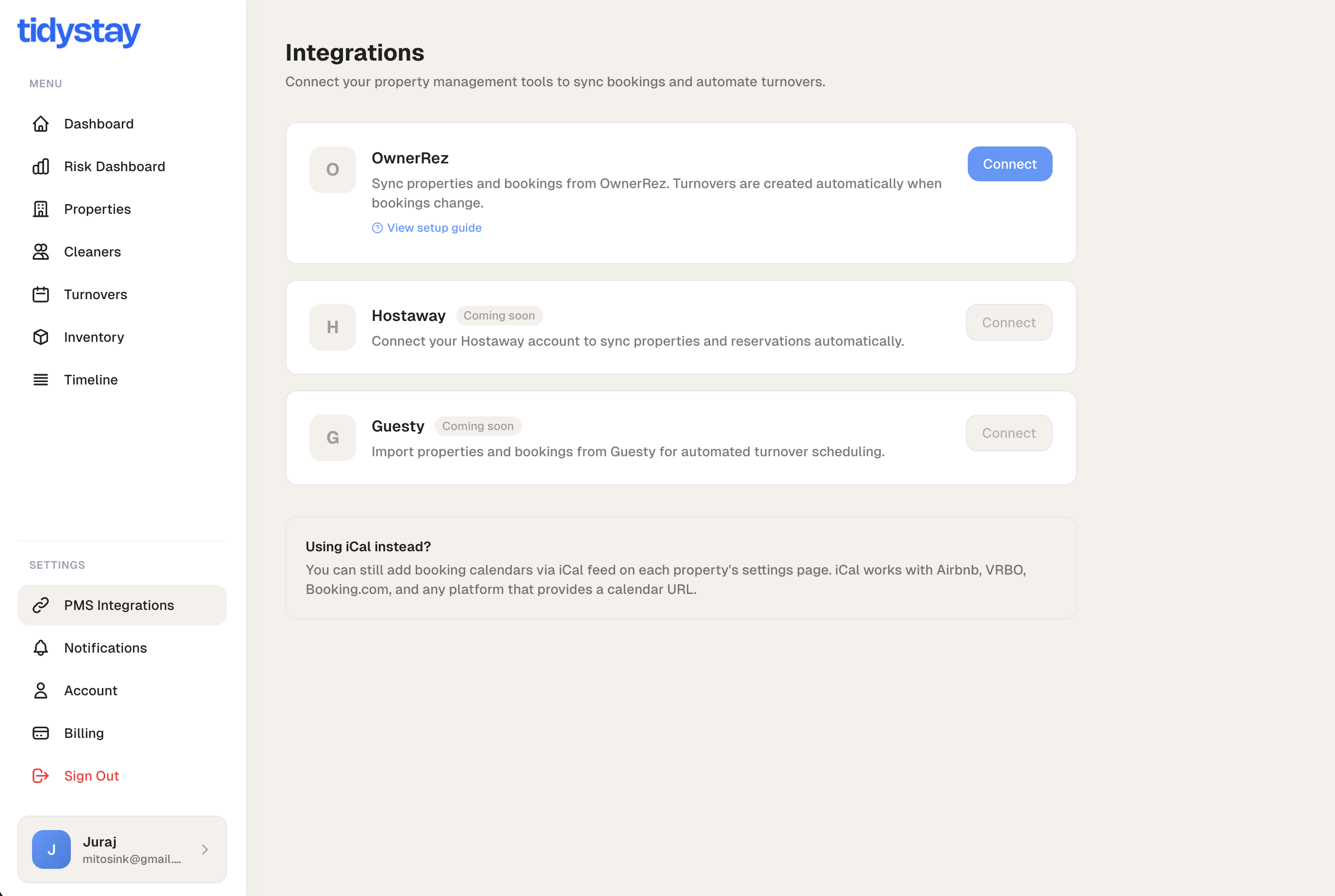
Open Integrations and click Connect
Sign in to TidyStay and click PMS Integrations in the sidebar. Find the OwnerRez card and click Connect.
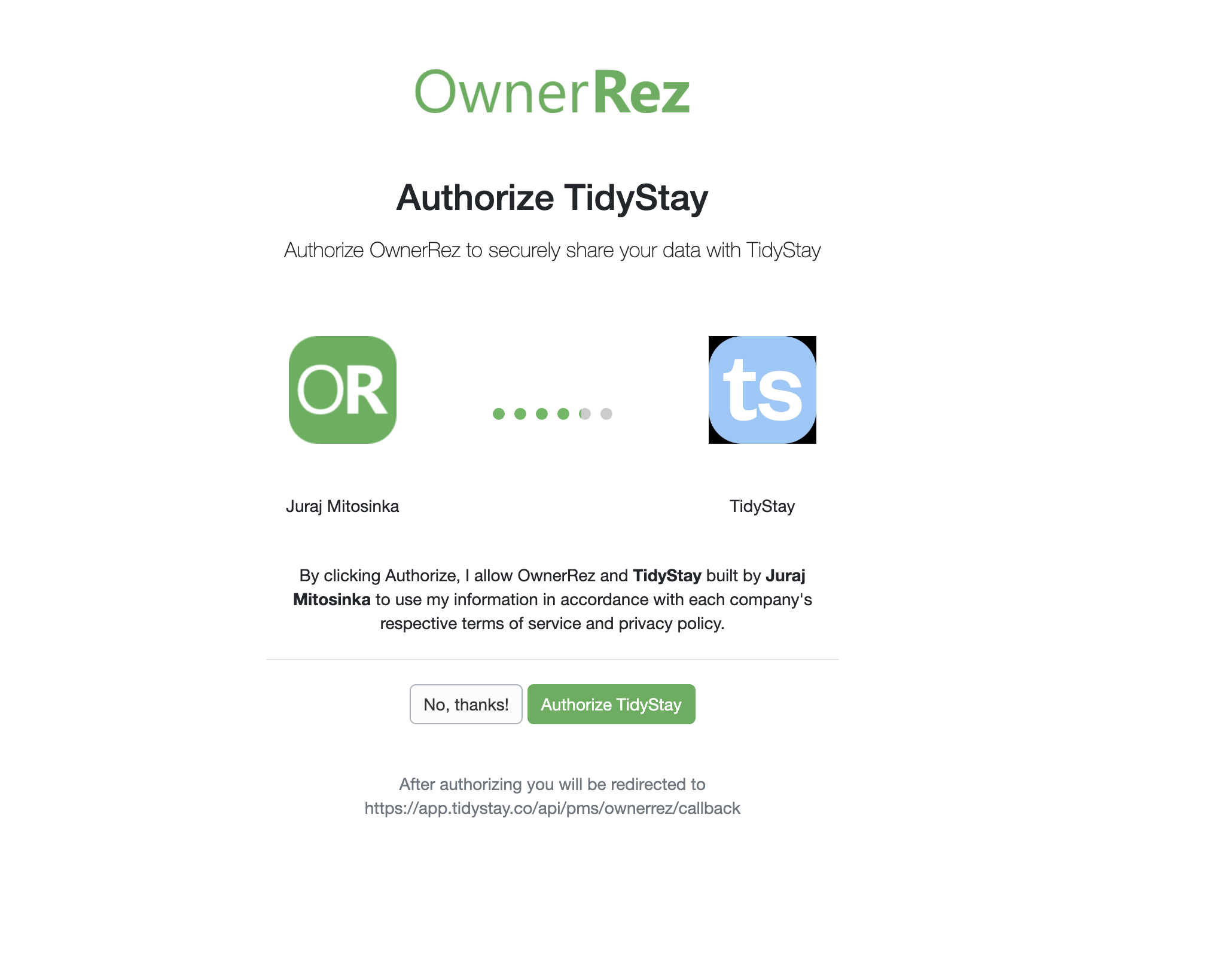
Sign in to OwnerRez and approve
You'll land on OwnerRez. Sign in if you aren't already, then click Authorize TidyStay. Your password stays with OwnerRez — TidyStay never sees it.
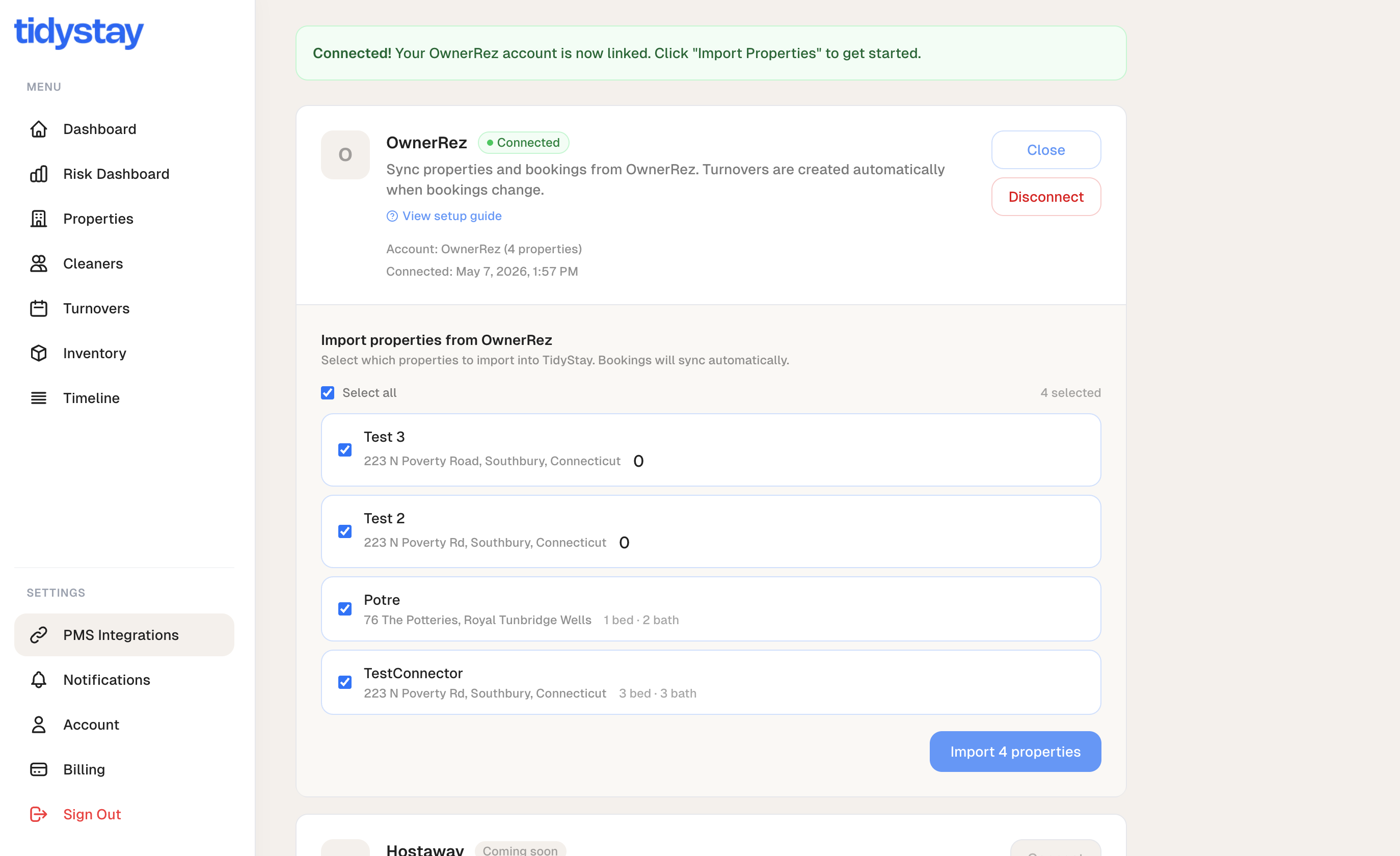
Pick the properties you want to manage
Back in TidyStay, you'll see a list of every active property in your OwnerRez account. Tick the ones you want TidyStay to handle, then click Import. You can come back later to import more.
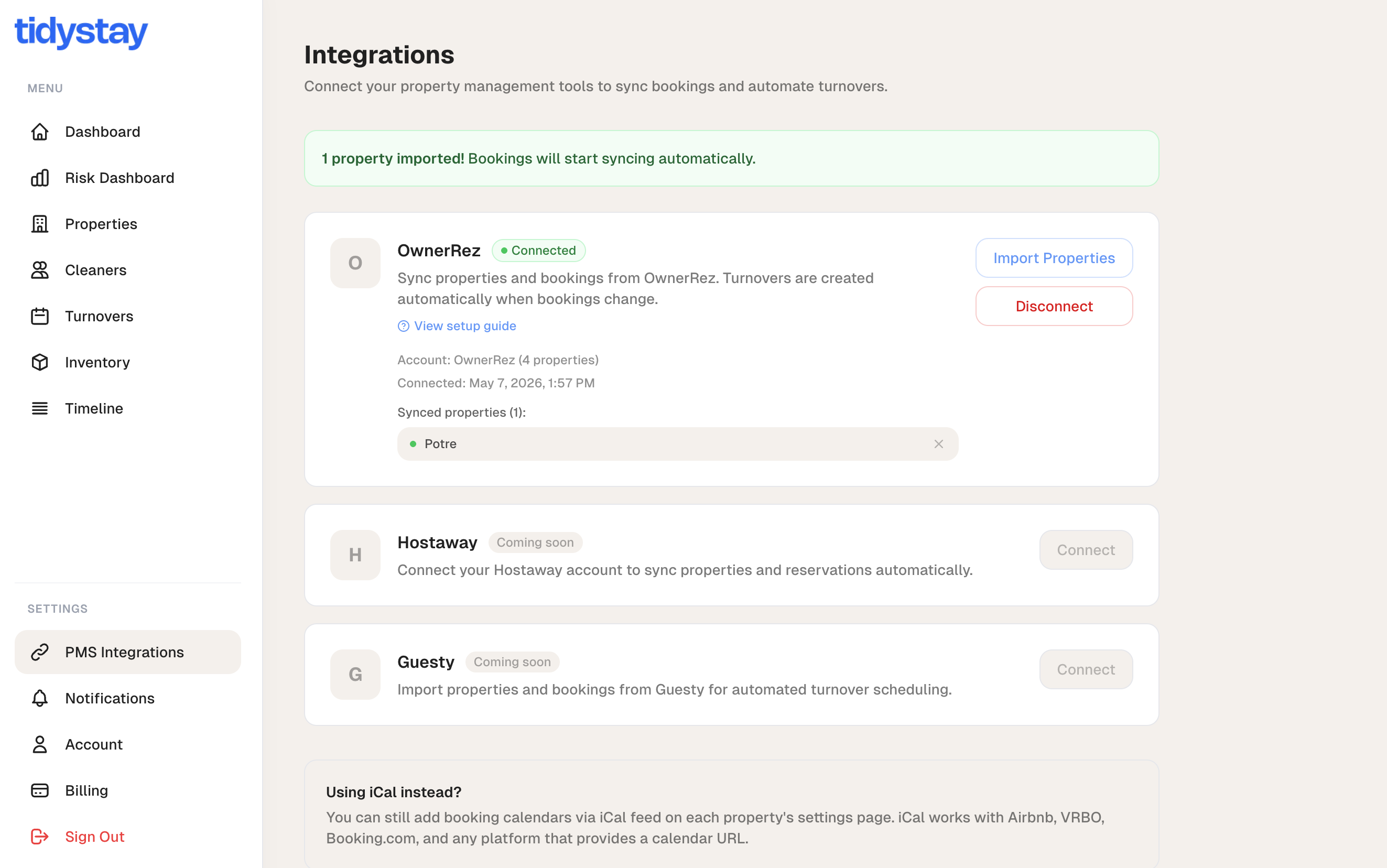
You're connected
That's it. TidyStay starts pulling in your bookings in the background — they'll appear on each property's calendar within a minute or so. From now on, every new booking, reschedule, or cancellation in OwnerRez flows over automatically.
What happens next
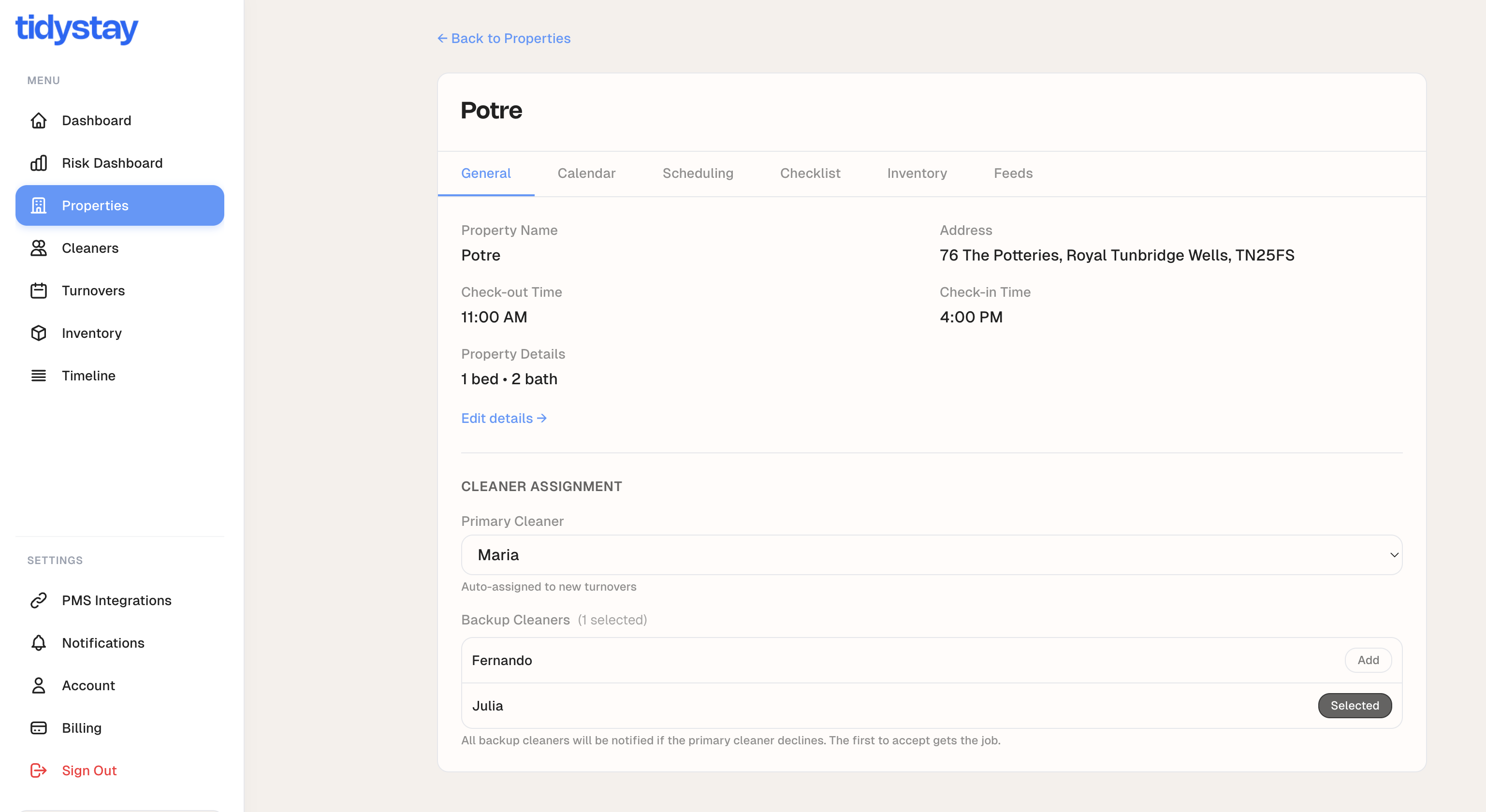
Assign a default cleaner
Open each imported property and set a default cleaner. From then on, every new booking creates a cleaning turnover that's already assigned — and your cleaner gets a text with the details.
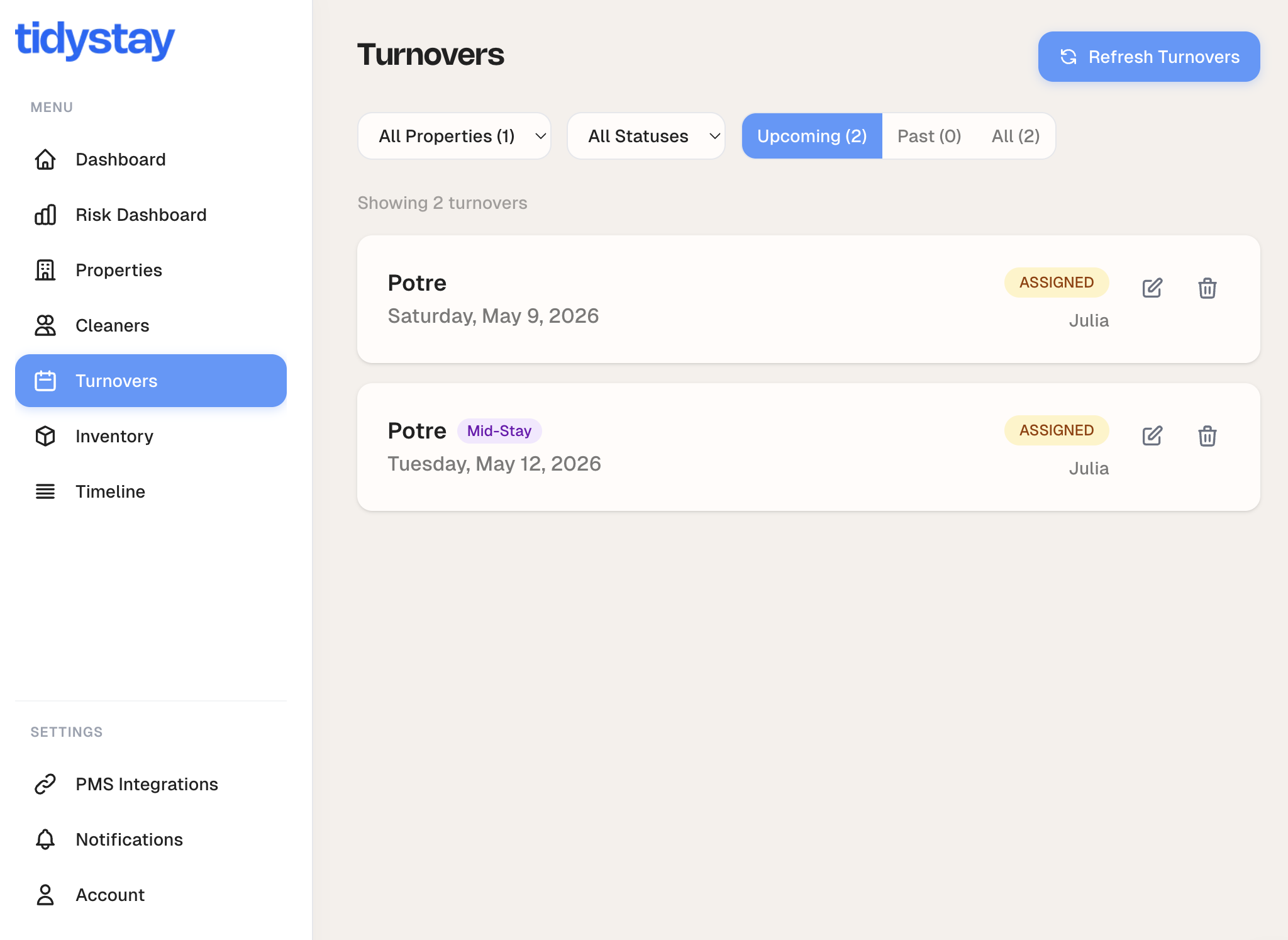
Watch turnovers appear automatically
Every confirmed booking shows up as a turnover on its check-out date. If the booking moves, the turnover moves with it — and your cleaner is notified. No spreadsheets, no copy-pasting calendars.
Common questions
Troubleshooting
Still stuck?
If something looks off, drop us a line and we'll dig into the sync logs with you.